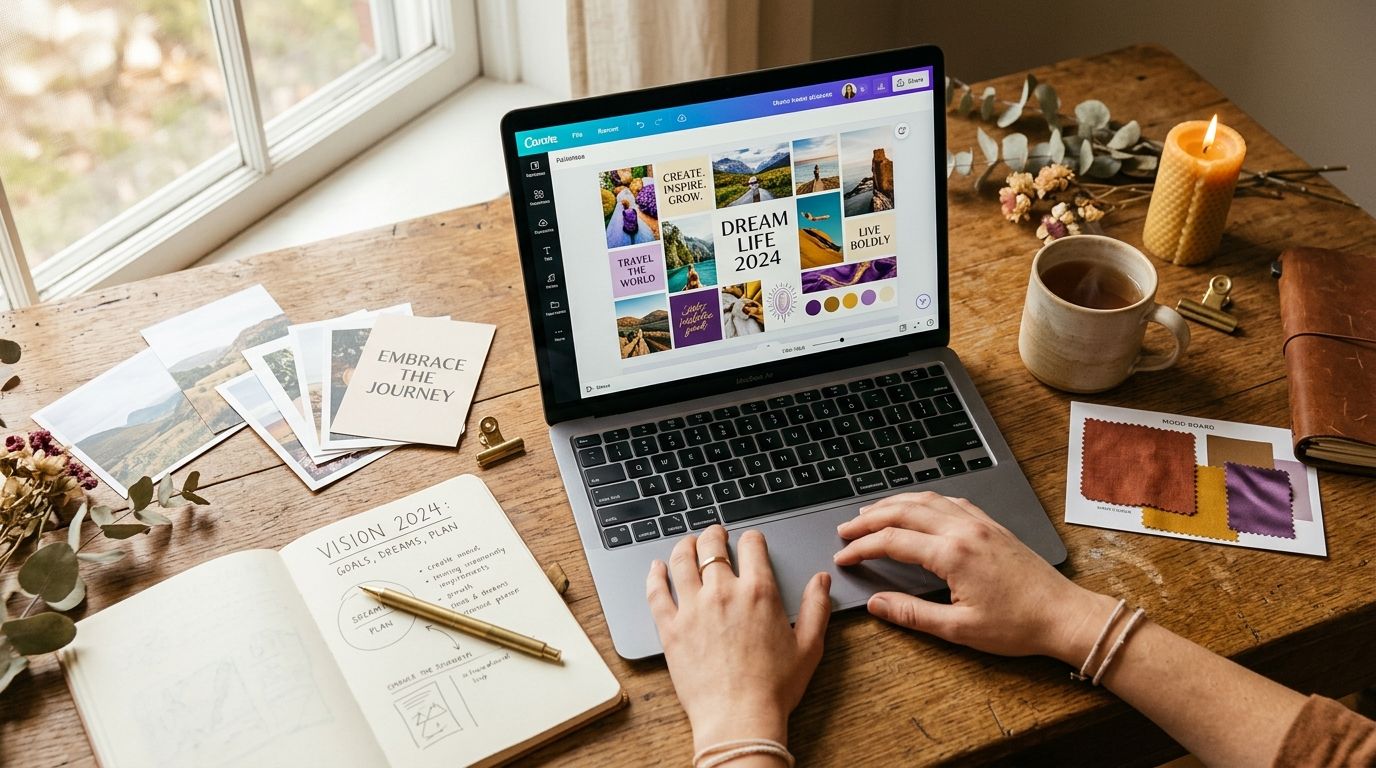
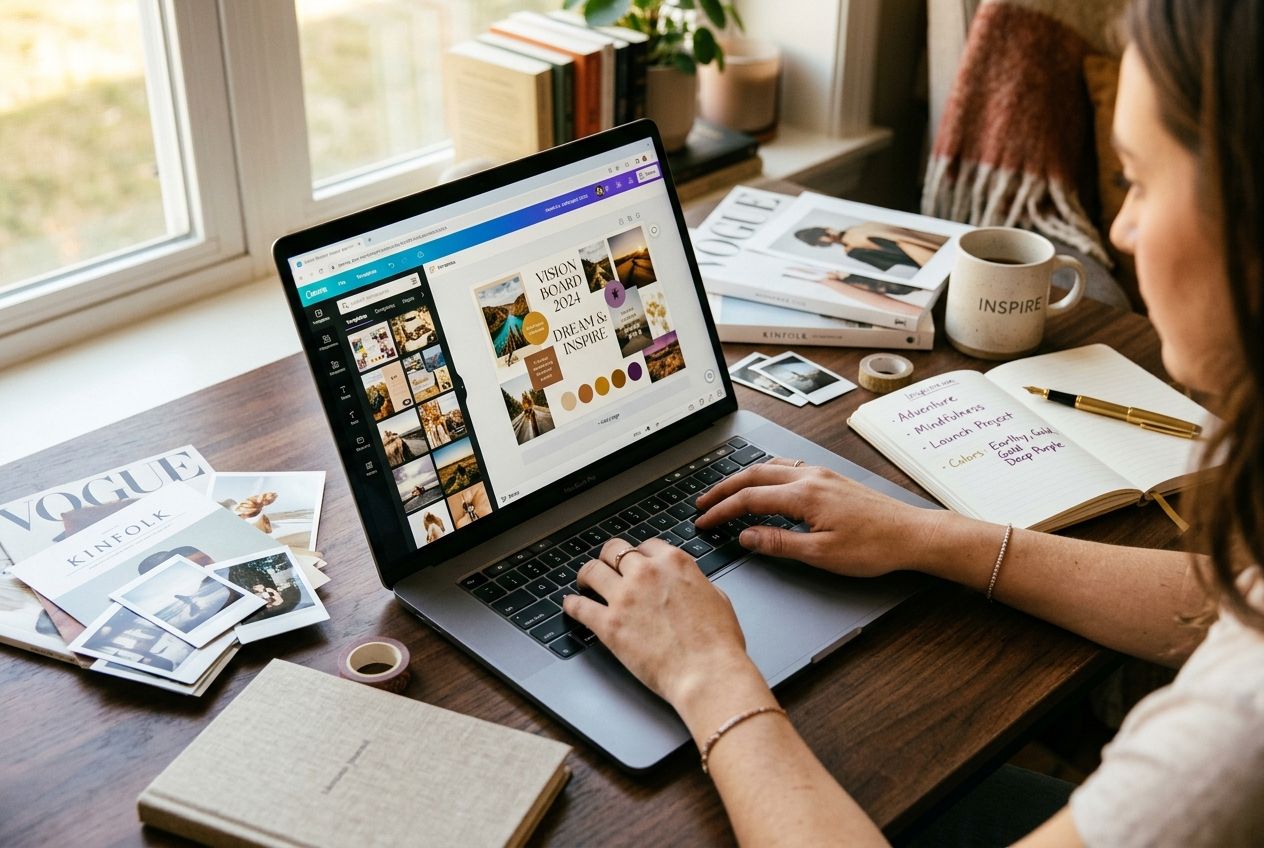
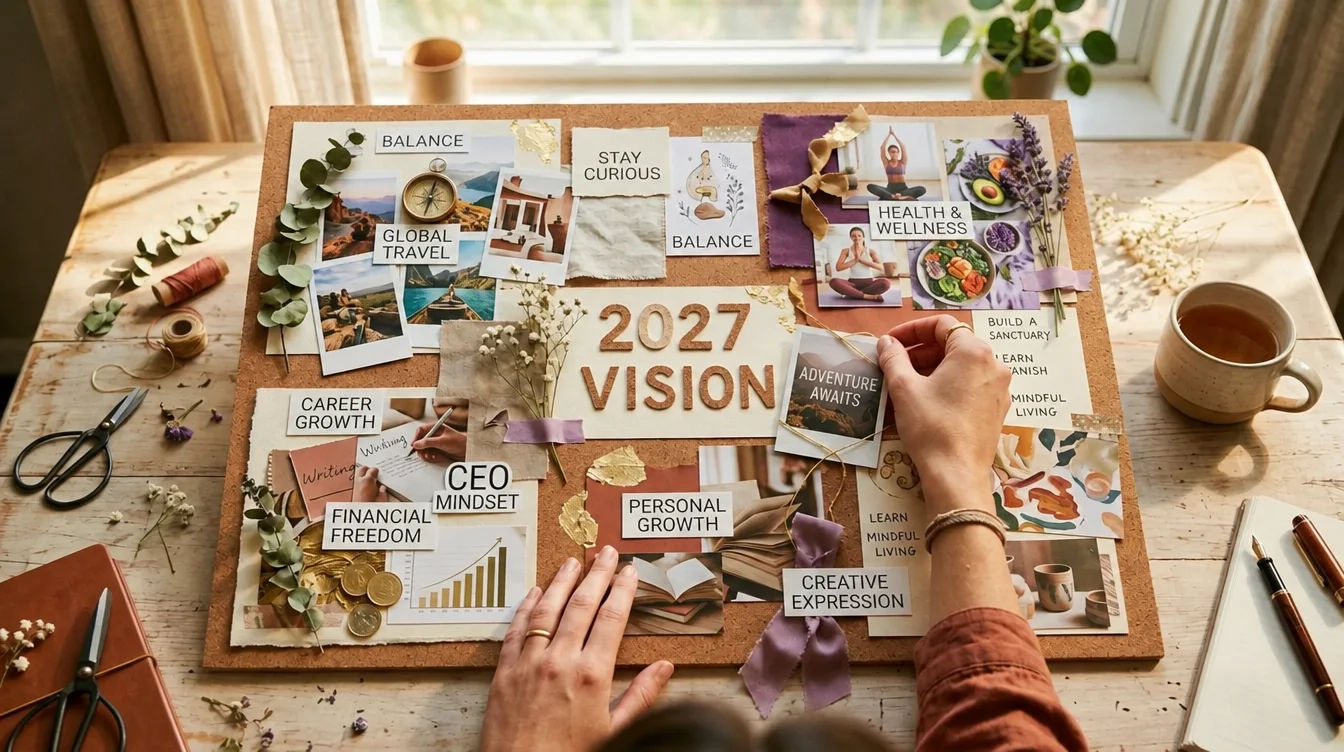
A Canva vision board is a free digital vision board created using Canva's drag-and-drop design platform. Canva offers over 500 vision board templates, millions of free stock images, and text tools that let you create a professional-looking board in under 30 minutes — then export it as a phone wallpaper, desktop background, or printable poster. This tutorial walks through the complete process from account creation to daily practice setup.
- Canva is 100% free for vision boards — no Pro subscription needed
- Start with a template rather than a blank canvas to avoid design paralysis
- Use 1080×1920 for phone wallpaper or 1920×1080 for desktop
- Upload your own photos for maximum emotional impact — stock images are a starting point
- Set the finished board as your lock screen for 96+ daily micro-exposures
How Do You Create a Vision Board on Canva Step by Step?
The complete Canva vision board process takes 20-40 minutes. Follow these steps in order.
- Go to canva.com and sign up (free). You can use a Google account, Facebook, or email. No credit card required.
- Search for "vision board" in the template search bar on the homepage. You'll see hundreds of pre-designed templates in various sizes and styles.
- Filter by size before choosing a template. Click "All Filters" and select your intended use:
- Phone Wallpaper (1080×1920) — you'll see your board 96+ times daily when you unlock your phone
- Desktop Wallpaper (1920×1080) — visible during work hours
- Presentation (16:9) — good all-purpose size for digital viewing
- Poster (24×36") — for printing and wall display
- Choose a template that resonates with your aesthetic. Look for templates with a clear grid structure — ideally 9 image slots organized by category. Avoid overly decorative templates where the design overwhelms the content.
- Replace every placeholder image with your own. Click on any image in the template, then click "Replace" or delete it and drag in a new image from:
- Uploads (left sidebar) — your own photos from your device
- Elements → Photos — Canva's free stock library (search specific scenes)
- Dragged from desktop — drag and drop directly from your computer
- Edit the text to match YOUR goals. Replace generic template text like "Dream Big" with specific, present-tense affirmations: "I am earning $8,000/month from my design business" or "I am living in my sun-filled apartment in Brooklyn."
- Add your personal photo to the center of the board. Click the center image slot, upload a photo of yourself, and position it so your face is the focal point. Seeing yourself surrounded by your goals activates mirror neurons.
- Adjust colors (optional). Click on any background element and change colors to match your preference. Purple and gold tones align with manifestation energy. Keep the overall palette cohesive.
- Download the finished board. Click "Share" → "Download" → select PNG (highest quality). For phone wallpaper, also download a cropped version at 1080×1920.
- Set as wallpaper immediately. Don't wait. Set your lock screen now so the daily practice begins today. On iPhone: Settings → Wallpaper → Add New → Choose Photo. On Android: long-press home screen → Wallpaper.
💜 Pro Tip: Search "vision board 3x3 grid" or "vision board 9 panel" on Canva for templates with the optimal 9-scene structure. The generic "vision board" search returns a lot of collage-style designs that look Pinterest-worthy but lack the category structure that makes boards neurologically effective.
What Are the Best Canva Vision Board Templates?
Not all Canva templates are created equal. The best ones have clear structure, customizable image slots, and room for text affirmations. Here are the template styles that work best:
| Template Style | Best For | Search Term |
|---|---|---|
| 3×3 Grid | Structured goal-setters | "vision board 9 panel grid" |
| Category Labels | Organized planners | "vision board categories labeled" |
| Minimalist | Clean aesthetic lovers | "vision board minimalist clean" |
| Photo Collage | Creative types | "vision board collage aesthetic" |
| Mood Board | Vibe-based manifestors | "mood board manifestation" |
For 15 specific free Canva templates with direct links, see Canva vision board templates.
How Do You Choose the Right Images on Canva?
The images on your board must create an involuntary emotional response. A beautiful stock photo of a beach sunset means nothing to your subconscious if it doesn't connect to YOUR specific goal.
- Upload your own photos first. Real photos from your life — the vacation where you felt free, the dinner party where you felt connected, the morning you felt powerful — carry 10x the emotional weight of any stock image.
- Search Canva's library with specificity. Don't search "house." Search "modern farmhouse kitchen wood floors." Don't search "money." Search "woman checking bank account smiling." Specificity gives your reticular activating system a target.
- Use the 3-second test. Look at each image for 3 seconds. If you feel something physical — goosebumps, chest tightness, a smile pulling at your face — it belongs. If you feel nothing, skip it. Your amygdala's emotional response is the filter.
- Include images of yourself. Upload a selfie and place it in the center. Or take it further — Manifest Mosaic generates photorealistic scenes with your actual face in them. Seeing yourself in your dream life activates mirror neurons that stock photos cannot reach.
For a curated collection of images organized by category, browse vision board pictures.
✨ Key Insight: The most effective Canva vision boards use personal photos, not stock images. Dr. Tara Swart's neuroscience research shows that your brain's reticular activating system responds more strongly to images containing familiar faces and real environments. Upload photos of yourself, your actual dream neighborhood, or your real workspace rather than relying on Canva's stock library.
How Do You Add Affirmations to a Canva Vision Board?
Text affirmations on your board activate language processing (left hemisphere) alongside the visual processing (right hemisphere) that images trigger. This bilateral activation creates stronger memory encoding than images alone.
- Click the text tool (T icon in the left sidebar) and add a text box.
- Write 1-3 short affirmations. Keep them under 8 words each so they're readable at phone wallpaper size. Examples:
- "I AM FINANCIALLY FREE"
- "$150,000 BY DECEMBER"
- "PEACE • PURPOSE • POWER"
- Choose a clean font. Playfair Display for elegant serif. Montserrat for clean modern. Satisfy for handwritten feel. Avoid decorative fonts that are hard to read small.
- Position strategically. Place affirmations in corners, between images, or as an overlay on a dimmed photo. They should be visible but not competing with images.
- Use your board's primary keyword colors. Gold text on dark backgrounds. White text on image overlays. Purple accents for spiritual affirmations.
For 100+ affirmation ideas to use on your board, see vision board quotes. Generate personalized affirmations with the AI Affirmation Generator.
How Do You Make Your Canva Board a Phone Wallpaper?
Your phone lock screen is the highest-exposure location for a vision board. The average person unlocks their phone 96 times per day — that's 96 micro-exposures to your goals without any conscious effort.
- Create a phone-sized version. In Canva, click "Resize" (or create a new design at 1080×1920 pixels). If you already have a landscape board, recreate the layout vertically.
- Simplify for small screen. Your phone screen is small. Reduce to 4-6 images instead of 9. Make text larger. Increase contrast between text and backgrounds.
- Download as PNG. PNG preserves quality better than JPG at phone screen resolution.
- Set as lock screen:
- iPhone: Settings → Wallpaper → Add New → Choose Photo → select the PNG → Set as Lock Screen
- Android: Long-press home screen → Wallpaper → Gallery → select the PNG → Apply to Lock Screen
- Set a daily alarm. Create a morning alarm labeled "Vision Board Practice — 5 minutes." When it rings, hold your phone, look at your lock screen, and do the daily vision board practice.
🔮 Aura Says: "Canva gives you a beautiful static board. I give you a living one. Every morning I send you a new affirmation card with your face in a photorealistic scene that matches your current intention. Canva is the canvas. I'm the coach."
Can You Make a Collaborative Vision Board on Canva?
Yes. Canva's sharing features make it easy to create group vision boards — perfect for vision board parties, couples boards, classroom projects, or team goal-setting.
- Create the base template with category labels but empty image slots.
- Click Share → "Anyone with the link can edit." Copy the link.
- Send the link to everyone participating. Each person adds their own images and affirmations to their assigned sections.
- Set a timer during a vision board party — 30 minutes of collaborative editing with music playing creates a fun group ritual.
For Google Slides as an alternative collaborative platform, see the separate tutorial.
What Are the Limitations of Canva Vision Boards?
Canva is excellent for creating static digital boards, but it has real limitations:
- No daily practice reminders. You have to remember to look at your wallpaper intentionally. Canva doesn't send push notifications or morning prompts.
- No AI personalization. Canva gives you stock images. You can't see yourself in the scenes. Manifest Mosaic generates photorealistic images with your face in every scene — a fundamentally different neural experience.
- No coaching layer. A Canva board is a poster. It doesn't track your practice, adapt to your progress, or provide guided affirmations and journal prompts tied to your board's goals.
- Static content. Updating your board requires re-editing the design. An AI-powered board regenerates instantly when your goals evolve.
For a comparison of all digital options, see best vision board apps. For the full digital vs physical debate, read digital vision board guide.
Create your AI vision board free — with your face in every scene →
Sources & Methodology
Canva — Vision Board Templates — Primary platform reviewed for this tutorial. All features tested on Canva Free tier.
Dr. Gail Matthews, Dominican University — Goals Research — Research supporting visual goal-setting and daily accountability practices.
Methodology: This tutorial is based on hands-on testing of Canva's free tier for vision board creation across desktop and mobile platforms. All steps verified as of April 2026. Canva features may change with platform updates.